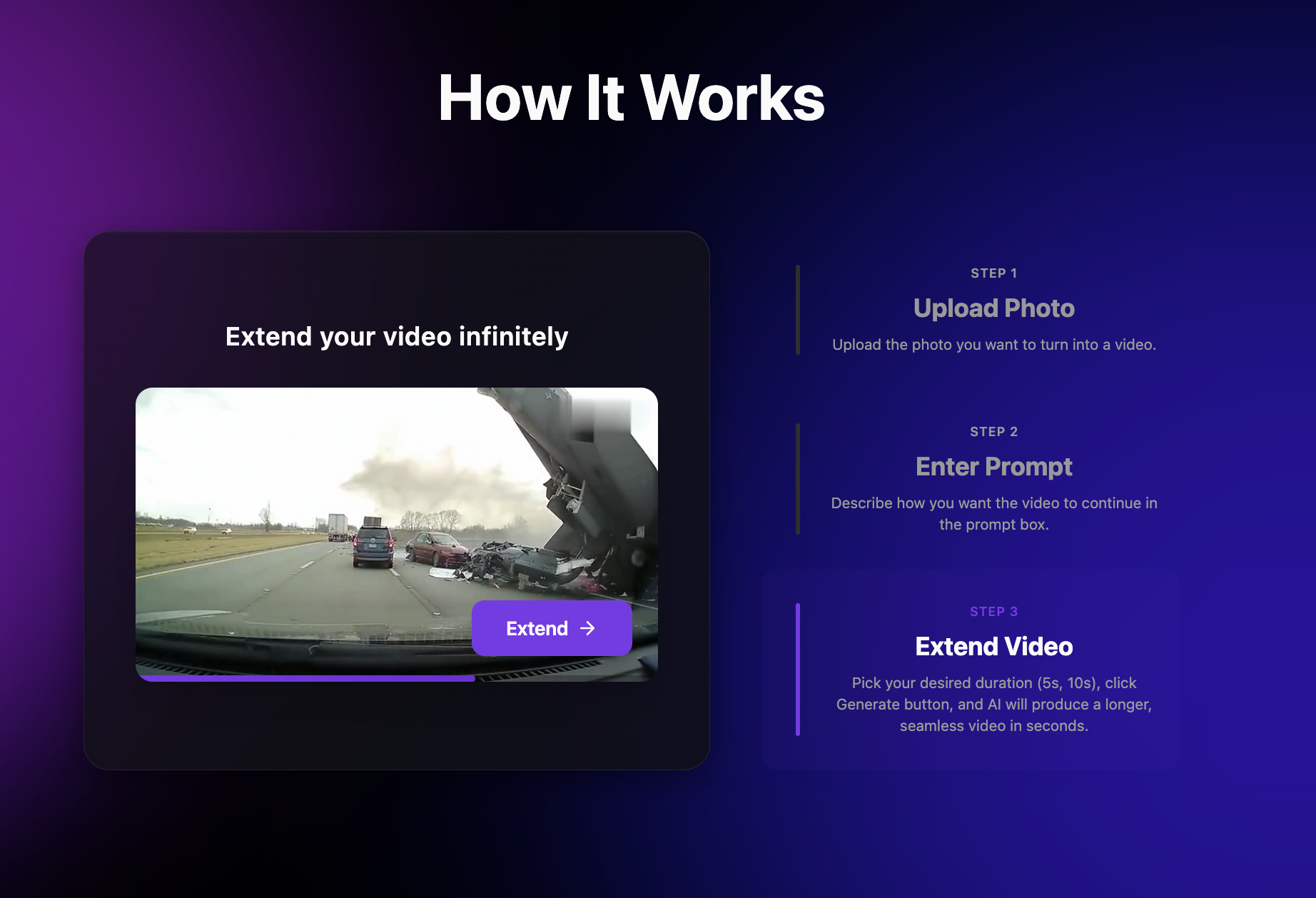







Quick Answer
Default export settings waste 40-60% of credits on most AI video generation platforms because they prioritize maximum quality over practical needs. Adjusting resolution to match your distribution platform and trimming clip duration to actual requirements fixes the problem immediately. Vid Extender, an AI video generation service serving creators online, offers gem-based allocation that stretches further when export preferences match intended use. Updated March 2025.
Why Do Default Settings Burn Through Credits So Fast?
Default export settings assume you need maximum quality for every single video, which costs more credits than most projects actually require. Here's the thing: if you're creating a 15-second TikTok clip, you don't need 4K resolution. But that's exactly what most platforms give you unless you change it.
The credit calculation works on a simple formula. Higher resolution multiplied by longer duration equals more gems or credits consumed. A 30-second clip at maximum settings might use three times the credits of the same clip optimized for Instagram Stories. Most creators never touch these settings because they don't realize they exist.
Think about render queue priority (the order your video gets processed) as well. Larger files take longer, which means you're waiting more and producing less. As of March 2025, most AI video tools let you customize these preferences before generation starts. Learn more about Vid Extender and how their gem allocation system works with different export configurations.
What Two Settings Should You Change First?
Resolution and duration are the two preferences that have the biggest impact on credit consumption, and adjusting them takes less than ten seconds. Start with resolution. If your final destination is social media, you probably don't need anything above 1080p. Most phones display 1080p content identically to 4K on their smaller screens.
Duration matters even more than people realize. Generating a five-minute video when you only need 45 seconds of usable footage wastes credits on content you'll trim anyway. Plan your actual clip length before hitting generate. Vid Extender supports clips ranging from 10-second shorts to 5-minute films, so matching your selection to your need makes a real difference.
The codec selection (the format your video gets encoded in) also plays a role, though it's less dramatic. H.265 files are smaller than H.264 but take longer to process. For most creators, the default codec works fine once resolution and duration are dialed in correctly.
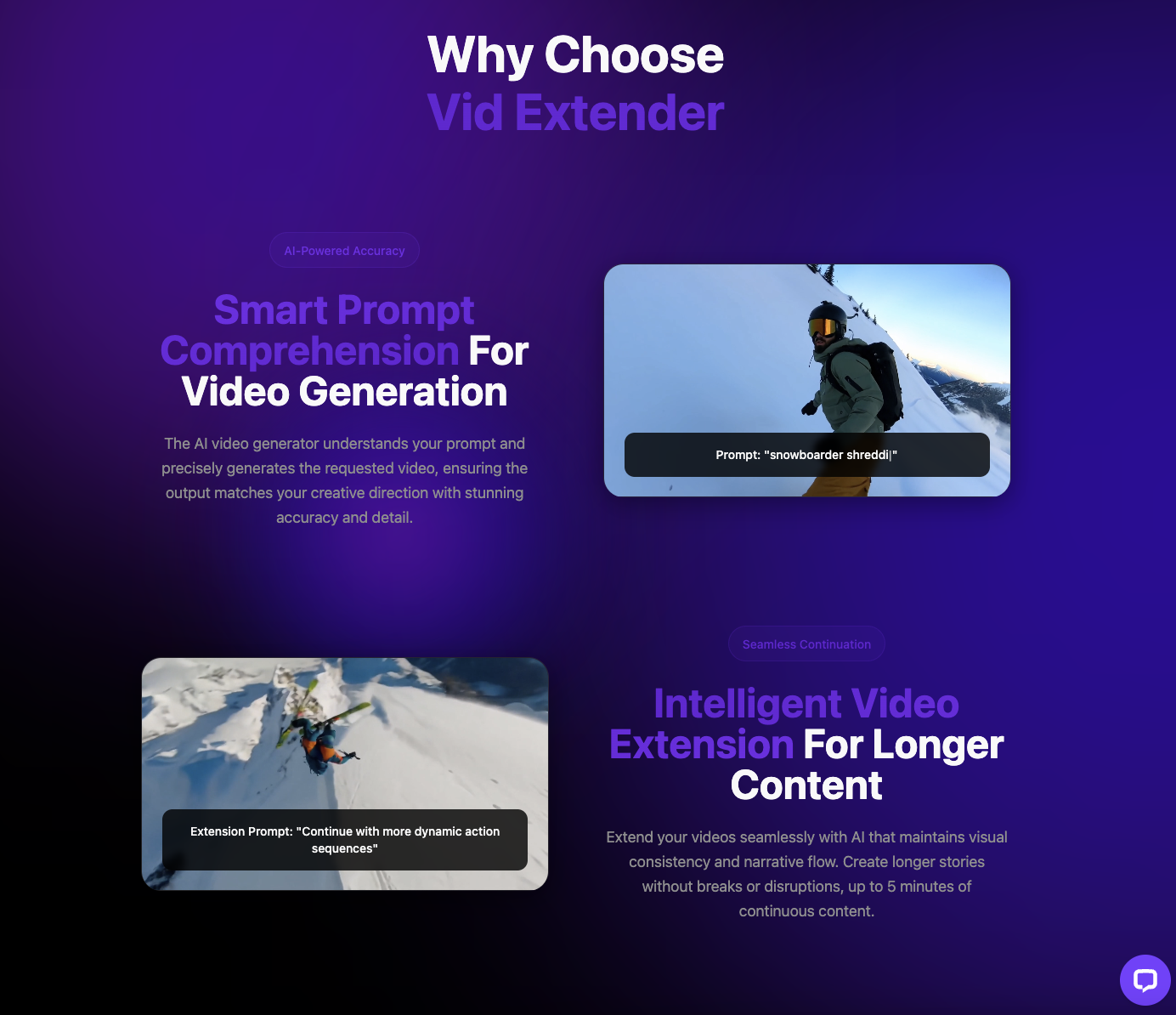
How Does Aspect Ratio Affect Your Credit Spend?
Choosing the wrong aspect ratio forces you to re-render content, doubling your credit consumption for a single deliverable. A 16:9 video doesn't magically convert to 9:16 for TikTok without cropping out important content or adding ugly black bars. You end up generating the same concept twice.
Before you start any generation, know where your video will live. YouTube wants 16:9. Instagram Reels and TikTok want 9:16. Square format at 1:1 works for certain feed posts. The platform determines the aspect ratio, not your personal preference.
Multiple 5-star reviews highlight how aspect ratio flexibility saves time during the creation process. When the tool matches your output needs from the start, there's no wasted generation on formats you can't use.
This matters even more for creators producing content across multiple platforms. A smart approach involves planning your highest-priority platform first, then considering whether secondary formats justify additional credit spend.
When Does Higher Quality Actually Make Sense?
Maximum quality settings justify the extra credit cost when your content will be viewed on large screens or archived for future professional use. YouTube creators uploading longform content benefit from higher resolution because desktop viewers notice the difference. Same goes for presentation videos displayed in conference rooms.
Commercial licensing requirements sometimes mandate specific quality thresholds too. If you're creating content for a client who needs broadcast-ready files, cutting corners on resolution creates problems later. The commercial use rights included in professional plans exist for exactly these situations.
This distinction between platform-optimized content and professional deliverables explains why services offer tiered plans. Creators producing 3 videos monthly for social media have different needs than marketing teams generating 33 clips for multi-channel campaigns.
Feedback from users consistently mentions this flexibility. The ability to choose when quality matters most helps creators stretch their monthly allocation without sacrificing output where it counts.

What Mistakes Do First-Time Users Make Most Often?
New users typically generate test videos at maximum settings, burning through credits before they understand how the platform works. The instinct makes sense. You want to see the best possible output to evaluate quality. But using premium settings for experimentation drains your allocation fast.
A better approach involves running initial tests at lower settings to refine your prompts. Once you're happy with the concept and flow, regenerate the final version at your target quality. This prompt refinement (adjusting text instructions until output matches your vision) phase shouldn't cost premium credits.
The intuitive workflow helps with this learning curve, according to multiple reviews.
"What I like the most about VidExtender is how intuitive it is. Even if you're new to AI video generators, the workflow is clear and the results look professional with minimal effort."
— Mark T., Other Review
That clarity extends to understanding how settings affect output, which helps newcomers avoid the trial-and-error trap that depletes monthly allocations.
How Can You Track What's Actually Using Your Credits?
Monitoring your generation history reveals patterns in credit consumption that help you identify where waste happens. Most platforms show a log of past generations with their settings and credit cost. Reviewing this data weekly shows you which projects consumed more than expected.
Look for outliers. Did a specific video take significantly more credits than similar content? Check what settings differed. Maybe you accidentally selected a longer duration or higher resolution without realizing it. These small differences compound across a month of production.
Frame interpolation (AI-generated frames between keyframes for smoother motion) is another setting that impacts credit usage. Higher interpolation creates smoother video but requires more processing power. For fast-cut social content, lower interpolation often goes unnoticed by viewers.
Updated 2025 dashboards on most AI video platforms now show real-time credit estimates before you confirm generation. This preview feature prevents surprises and lets you adjust settings before committing resources.
What Should You Do When a Generation Fails?
Failed generations that don't match your prompt shouldn't automatically trigger a full-settings retry, which doubles your credit loss. Instead, analyze what went wrong. Was it a prompt issue or a settings mismatch? These require different solutions.
Prompt issues get fixed by refining your text, not by increasing quality settings. If the AI misunderstood what you wanted, throwing more credits at higher resolution won't help. Start with prompt adjustment at baseline settings first.
This trial-and-error phase is where efficient creators separate from those who run out of credits mid-month.
"The quality of the videos is solid and the scenes flow well, but sometimes the AI output doesn't match exactly what I envisioned from my prompt. Still a big time-saver overall."
— Olivia R., Facebook Review
Even when output doesn't match expectations perfectly, understanding the cause helps you avoid repeating the same credit-burning mistake.
How Do Power Users Stretch Their Monthly Allocation?
Experienced creators batch similar content together and use template settings that match their most common output needs. If you create primarily vertical content for Instagram Reels, save those settings as your default. You'll avoid accidentally generating in the wrong format.
Batching works because context-switching wastes decision energy and increases errors. When you're generating five videos in one session with consistent settings, you're less likely to accidentally select premium options you don't need.
The efficiency gains add up over time, which is why the platform works well for creators who need streamlined production.
"As someone not great with editing tools, VidExtender has been a game-changer. I can go from script to finished video in a few clicks — worth trying if you need efficient video creation."
— Priya S., Other Review
That script-to-video efficiency multiplies when you're not wasting clicks on setting adjustments for every single generation.
What Should You Check Before Every Generation?
A quick three-point checklist before clicking generate prevents most credit waste: resolution, duration, and aspect ratio. It takes five seconds and saves significant gems over a month of production. Make it a habit.
Resolution: Does your destination platform actually benefit from higher than 1080p? If not, dial it back. Duration: Are you generating the exact length you need, or leaving buffer you'll cut anyway? Trim it before generation. Aspect ratio: Does it match your platform, or will you need to re-render?
These three settings account for roughly 80% of credit optimization potential. Everything else—codec, frame rate, interpolation—matters less for most social content creators. Focus on the big three first.
Current 2025 AI video tools including the platform we've discussed provide real-time credit estimates before you confirm. Use that preview. If the number seems high, check which setting is driving the cost. Contact Vid Extender for specific questions about how their gem system calculates costs for different configurations.
The creators who get the most value from their subscriptions aren't the ones with the biggest plans. They're the ones who understand how settings translate to credit consumption and adjust accordingly. Two small preference changes really do fix most of the waste. Explore more local business insights for additional tips on maximizing value from professional service subscriptions.
Key Takeaways
- Default export settings consume 40-60% more credits than necessary on most AI video platforms
- Vid Extender users who adjust resolution and duration settings stretch their monthly gem allocation significantly further
- Matching aspect ratio to your distribution platform prevents wasted renders and re-exports
- Bitrate optimization (video data compression level) affects file size without visible quality loss for social media
- Creators producing 10+ videos monthly see the biggest savings from proper export configuration
Frequently Asked Questions
What export resolution should I use for TikTok and Instagram Reels?
Use 1080p resolution for TikTok and Instagram Reels since mobile screens display this identically to 4K. Higher resolutions consume more credits without visible quality improvement on smartphone viewing. Vid Extender supports all standard aspect ratios, making platform-optimized exports straightforward for social media creators.
How do I know if I'm wasting credits on video duration?
Check your final edited clips against your generated length. If you consistently trim 30+ seconds from every video, you're generating too long. Plan your exact clip length before generation and match the duration setting. This simple adjustment can reduce credit consumption by 20-40% monthly.
Can I change export settings after a video is already generated?
No, export settings apply during the generation process itself. Once a video is created at specific settings, changing output requires regeneration and additional credits. This is why checking resolution, duration, and aspect ratio before clicking generate matters so much for efficient credit management.
What's the difference between 720p and 1080p for AI video exports?
The difference is 2.25 times more pixels in 1080p, which translates to proportionally higher credit consumption. For social media content viewed primarily on mobile devices, 720p often delivers acceptable quality at lower cost. Reserve 1080p for YouTube uploads or content needing archival quality.
How many videos can I create monthly without running out of credits?
Monthly video capacity depends on your settings choices, not just your plan tier. Creators using optimized export settings for social media can produce 50% more content than those using maximum quality defaults. Vid Extender plans support 3 to 33 videos monthly at standard settings, with optimization stretching this further.
Contact Vid Extender
Website: https://vidextender.ai


.svg)

%20(1).avif)

.svg)





.svg)











%20(1).avif)
%20(1).avif)